Some links in this post are affiliate links. If you sign up through them, we may earn a commission at no extra cost to you. We only recommend tools we use to build client stores.
To find which Shopify app is slowing down your store, check when your speed dropped in Shopify's web performance report, list the apps that load on your storefront, then switch their app embeds off one at a time on a duplicate theme and test each change. The app whose removal makes the biggest difference is your culprit.
Key takeaways
- Only apps that load on your storefront can slow it down. Admin-only apps, like accounting or inventory tools, rarely do.
- Shopify's web performance report marks app installs on its charts, so you can often see exactly when the slowdown started.
- Test on a duplicate theme, never your live one, and switch off one app embed at a time.
- Uninstalling an app doesn't always remove its code. Check your theme for leftovers.
- A slow app that makes you money may be worth keeping. Decide with both numbers in front of you.
Do Shopify apps slow down your store?
Some do. Apps that add something shoppers see, such as reviews, pop-ups, chat, upsells, currency switchers or countdown timers, load their own code on your storefront, often on every page. Apps that only work inside your admin don't load anything for shoppers.
The problem is rarely one terrible app. It's usually several reasonable ones adding up, plus leftovers from apps you removed months ago. If you haven't confirmed that your store is actually slow, start with our guide to why your Shopify store is slow, which helps you find the cause before blaming apps.
How do you find which app is slowing your Shopify store?
Work through these five steps in order. You don't need to write code, and nothing changes on your live store until you choose.
- Check when it got slower. Go to Analytics > Reports and open the web performance reports. They use real visitor data and mark events such as app installs and theme changes on the charts. If loading speed or responsiveness got worse right after an install, that app is your first suspect.
- List your storefront apps. Go to Settings > Apps and write down every app that shows something to shoppers. Ignore admin-only apps for now.
- Duplicate your live theme. In Online Store > Themes, click the three dots next to your live theme and choose Duplicate. Every test below happens on this copy.
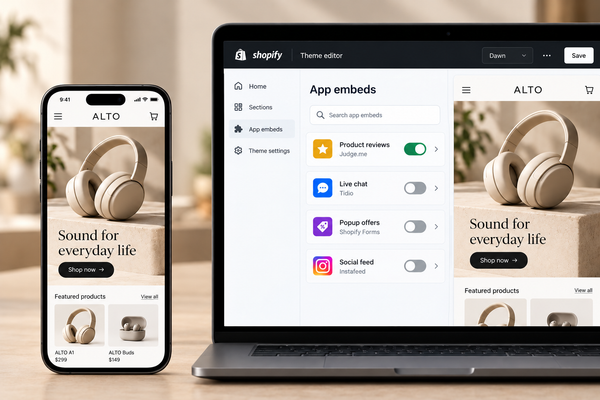
- Switch app embeds off one at a time. In the duplicate, open the theme editor, click the App embeds icon in the left sidebar, turn off one app, save, and test the preview. Then turn it back on and try the next one.
- Test the same pages each time. Use your homepage and your best-selling product page, on mobile settings, and run each test three times. Single speed tests vary, so compare the middle result.
How do you test the speed of a theme preview?
Open the duplicate theme's preview in Google Chrome, then open Chrome's developer tools (right-click the page and choose Inspect) and run a Lighthouse report with the mobile setting. Lighthouse is built into Chrome and free.
If you're comfortable going one step further, Shopify's developer guide to auditing third-party scripts describes two more checks:
- Network request blocking. In the Network panel, block one app's domain, reload, and compare how much the page downloads. This tests an app without touching any setting.
- Coverage. The Coverage tab shows code that downloaded but never ran, a sign that an app loads on pages where it does nothing.
Shopify's guide also recommends running several Lighthouse audits and using the middle score, because single results vary.
What if the app isn't in the App embeds panel?
Some apps add code another way: as blocks inside your page templates, or written directly into your theme files. Shopify notes that uninstalling an app doesn't always remove code it added to your theme, so leftovers from old apps can keep loading.
- App blocks: in the theme editor, look through your homepage, product and collection templates for app blocks. Remove any you don't use.
- Code in theme files: if an app was installed before app embeds existed, its code may sit in your theme files. Ask the app's developer to remove it. Most will do this for free.
- Old apps you've uninstalled: view your store's page source in the browser and search for the app's name or domain. If it's still there, the code was left behind.
Shopify's guide to improving web performance covers this and the other common causes of a slow store.
Should you remove the slow app?
Not automatically. Speed matters because it helps people buy, so weigh what each app costs in speed against what it earns. Use this table for each suspect.
| What you found | What to do |
|---|---|
| Slows the store and you rarely use it | Remove it, then check for leftover code |
| Slows the store, and another app does the same job | Keep one, remove the duplicate |
| Slows the store but clearly makes money | Keep it, and ask the developer whether it can load only on the pages that need it |
| Slows the store and a lighter app does the same job | Test the lighter app on your duplicate theme before switching |
| Does something Shopify or your theme already does | Remove it and use the built-in feature |
| Makes no measurable difference | Keep it and move on to the next suspect |
Common overlaps include two apps tracking the same ad platform, a reviews app plus a separate star-rating app, and a currency app on a store already using Shopify Markets. Our guide on how to speed up a Shopify store without coding covers the other quick wins, such as images, sliders and fonts.
How do you confirm the fix worked?
Once you've made a change on your live theme, give it a few days of normal traffic. Shopify's web performance report uses real visitor data, which can take up to 36 hours to update, so don't judge a change the same day.
Keep a simple log: the date, the app you removed or changed, and which measure you expected to improve. If loading speed or responsiveness moves from poor to good on mobile, the change was worth it. If nothing moves, the app wasn't the problem, and you can reinstall it if you need it.
If your store needs to be fast for a big sale, also run the checks in our guide on how to prepare your Shopify store for Black Friday.
Do it yourself or have it done for you
Do it yourself: the duplicate-theme test takes an hour or two and needs no code. Start with the apps you installed most recently. If you're starting a store from scratch, you can start a free trial and add apps one at a time, checking speed as you go, which avoids most of this.
Have it done for you: if leftover code is buried in your theme files, or you'd rather not test apps yourself, Komrex, a Shopify store design agency, can do it. Our team has built 900+ Shopify stores, and our speed and conversion tuning service finds slow apps and removes leftover code. Not sure apps are the problem? Our free store audit will tell you.
Frequently asked questions
How many apps are too many for a Shopify store?
There's no safe number. One heavy app that loads on every page can slow a store more than several apps that only run in your admin. What matters is what each app loads for shoppers and on which pages. Keep the apps that clearly earn their place, remove the rest, and switch off app embeds you don't use.
Does uninstalling a Shopify app remove its code?
Not always. Apps that use app embeds or app blocks are removed cleanly, but some older apps wrote code directly into theme files, and that code can stay after you uninstall. View your store's page source and search for the app's name. If it's still there, ask the app's developer to remove it, or have a developer clean it up.
Can I test apps without affecting my live store?
Yes. Duplicate your live theme in Online Store > Themes, make your changes on the copy, and test its preview. Shoppers keep seeing your live theme until you publish the copy. App embeds you turn off in the duplicate stay on in your live theme, so you can test one app at a time safely.
Do Shopify speed apps fix slow apps?
Rarely. A speed app is another app, with its own code to load, and many promise things Shopify already does, such as caching, compression and image optimization. Find and fix the slow app first. If you try a speed app afterwards, compare your web performance report before and after, and remove it if nothing improves.
Which Shopify apps are usually the slowest?
It depends on how each app is built, so test rather than assume. In general, apps that load a lot of visible content on every page, such as pop-ups, chat widgets, review carousels, upsell widgets and social feeds, are worth testing first. Admin-only apps for accounting, inventory or shipping labels usually don't affect your storefront.
Duplicate your theme today, open the App embeds panel, and test your most recently installed app first.