Some links in this post are affiliate links. If you sign up through them, we may earn a commission at no extra cost to you. We only recommend tools we use to build client stores.
Shopify product page best practices come down to answering a shopper's questions before they have to ask. Put the photo, price, options and Add to cart button on the first phone screen. Then add clear details, delivery and returns information, and real reviews, and remove anything that slows the page or distracts from buying.
Key takeaways
- A product page has one job: answer "what is it, will it suit me, what will it cost to get here, and can I trust you?"
- Judge your product page on a phone. The photo, price, options and Add to cart button should all be visible without scrolling.
- Shipping cost, delivery time and returns belong on the product page, not just at checkout.
- Most of this can be set up in Shopify's theme editor with blocks and metafields. You don't need a page-builder app.
- Remove fake urgency, pop-ups that fire on arrival and heavy widgets before you add anything new.
What should be on a Shopify product page?
Every element on the page should answer a question a shopper has. If it doesn't, it's taking space from something that does. This table covers the essentials and where to set each one up in Shopify.
| Element | Question it answers | Where to set it up |
|---|---|---|
| Clear product title | What is it? | Products > your product |
| Main photo and gallery | What does it look like, really? | Products > Media |
| Price, including any sale price | How much is it? | Products > Pricing |
| Variant options with images | Does it come in my size or color? | Products > Variants |
| Add to cart button | How do I buy it? | Theme editor, product template |
| Short benefit summary | Why would I want it? | Product description |
| Specs (size, materials, ingredients, care) | Will it work for me? | Metafields shown in collapsible rows |
| Shipping cost, delivery time, returns | What happens after I pay? | Text or collapsible row blocks |
| Reviews or guarantees | Can I trust this store? | A reviews app from the Shopify App Store |
What should shoppers see on the first phone screen?
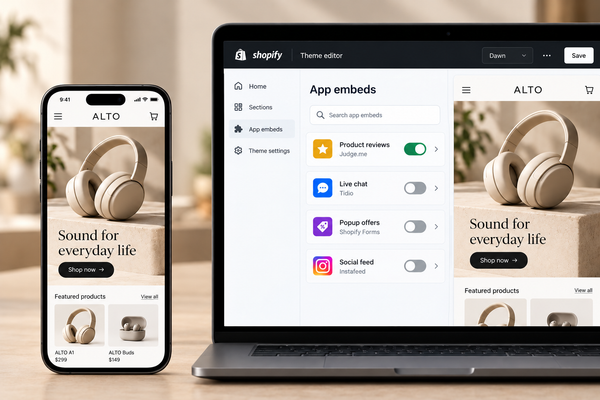
On a phone, the first screen should show the product photo, the title, the price, the options and the Add to cart button. If a shopper has to scroll to find the price or the button, many won't bother.
Open your best-selling product on your own phone and check:
- Can you see the price without scrolling? If a sale is on, both prices should be clear.
- Is the Add to cart button visible and easy to tap? Some themes offer a sticky Add to cart bar on mobile. Turn it on if yours does.
- Is there anything above the photo? Announcement bars, big logos and app banners push the product down. Keep the header slim.
- Can you tell what the product is from the first photo alone? Lifestyle shots are great in the gallery, but the first image should show the product clearly.
In the theme editor, open your product template and drag the blocks into this order: title, price, variant picker, buy buttons, then everything else. Most current Shopify themes let you do this without code.
How many product photos do you need?
Most products need four to eight good photos. More than that rarely helps, and every extra image adds weight to the page.
- A clean main shot on a plain background, showing the whole product.
- A scale shot in a hand, on a person or next to a familiar object, so shoppers can judge the size.
- Detail shots of texture, stitching, finish or the label, the things people would check in a shop.
- An in-use shot that shows the product doing its job.
- One shot per color or variant. Shopify lets you add an image to each variant, so choosing a color shows that color.
Resize photos before you upload them. Shopify recommends 2048 x 2048 pixels for square product images in its product media guide. Avoid supplier photos that appear on dozens of other stores, because shoppers recognize them and trust you less.
How do you write a product description that sells?
Write for the shopper's decision, not for search engines or your supplier. Lead with who it's for and what it does, then give the facts people need to say yes.
- Open with one or two sentences that say what the product is and who it's for, in the words your customers use.
- Add three to five benefit bullets. "Keeps coffee hot for 6 hours" beats "premium double-wall design."
- Put specs in collapsible rows below. Size charts, materials, ingredients, dimensions and care instructions. Store them as product metafields (Settings > Custom data > Products) and connect them to collapsible row blocks in the theme editor, so each product shows its own details without retyping the layout.
- Answer the objections you hear. If customers keep asking whether it fits, whether it's safe for kids or how long delivery takes, answer it on the page.
- Don't copy the supplier's description. It's usually written for wholesalers, and the same text on many stores gives Google no reason to rank yours.
Should shipping and returns be on the product page?
Yes. Surprise costs at checkout are the most common reason shoppers abandon a purchase, so tell them before they add to cart. Keep it short and specific.
- A delivery line near the buy button, such as "Free US shipping over $50. Delivered in 3 to 5 business days."
- A collapsible "Shipping and returns" row with costs by region and your returns window.
- A link to your full shipping and refund policies.
If shoppers are already adding to cart but leaving at checkout, our guide on how to reduce abandoned checkouts on Shopify covers the settings that fix that stage.
What if your new store has no reviews yet?
Don't fake them. Invented reviews are easy to spot, damage trust when they're found out, and can break consumer protection rules. Show honest proof instead while you collect real reviews.
- Install a reviews app from the Shopify App Store and set it to email customers a few days after delivery.
- Ask your first customers, friends who have actually bought, to leave an honest review.
- Show a clear guarantee or returns promise near the buy button.
- Show who's behind the store: a short founder note or an About link builds trust when reviews can't yet.
What should you remove from a product page?
Removing clutter often helps more than adding features. Before you install another app, take these out:
- Fake urgency. Countdown timers that reset and "only 3 left" counters that never change. Shoppers notice, and it costs you trust.
- Pop-ups on arrival. A discount pop-up that covers the product the moment the page loads interrupts the shopper before they've seen anything.
- Too many badges. One or two clear guarantees beat a row of generic "secure checkout" icons.
- Heavy widgets you don't need. Every app widget adds code. Our guide on how to speed up a Shopify store without coding shows what to cut.
- Autoplay video at the top. Use a photo first and put video further down the gallery.
If you're not sure what's helping and what's hurting, our free store audit reviews your product pages and tells you what to change first.
How do you know if your product page is working?
Look at how many visitors add to cart. Go to Analytics > Reports and open the Conversion rate breakdown report. If plenty of real visitors reach the page but few add to cart, the product page is the leak.
Even big brands find this hard. Baymard Institute's product page research rated only 49% of 344 leading US and European ecommerce sites as having decent or good product page UX.
Change one thing at a time, note the date, and compare two to four weeks later. For what a realistic add-to-cart and conversion rate looks like, see our guide to a good conversion rate for a new Shopify store. If the whole page fights you because of the theme, it may be one of the signs your Shopify store needs a redesign.
If you're in the UK, EU or Australia
Shoppers in these markets expect prices that already include VAT or GST. Make sure the price on the product page is the price they pay before shipping, show it in their currency where you can, and state delivery times for their country, not just for the US.
Do it yourself or have it done for you
Do it yourself: everything here can be done in the Shopify admin and theme editor. Start with your best-selling product, fix the first phone screen, then work down the page. Next, read our guide on why your Shopify store isn't converting to check the rest of your funnel. Not on Shopify yet? You can start a free trial and build your product pages this way from day one.
Have it done for you: Komrex, a Shopify store design agency, builds product pages around these questions. Our team has built 900+ Shopify stores. Our Growth Store package includes conversion-focused product page copy, or start with a free store audit of the pages you have.
Frequently asked questions
What makes a good Shopify product page?
A good Shopify product page answers a shopper's questions before they ask. It shows the product clearly, puts the price, options and Add to cart button on the first phone screen, explains the benefits in plain words, lists the specs, states shipping costs, delivery times and returns, and backs it up with real reviews or a clear guarantee. Anything else should earn its place.
How long should a Shopify product description be?
Long enough to answer the questions people ask before buying, and no longer. For most products that's one or two opening sentences, three to five benefit bullets, and specs in collapsible rows. Expensive or technical products need more detail. Simple, familiar products need less. If customers keep emailing the same question, the answer belongs in the description.
Do I need a page builder app for my product pages?
Usually not. Current Shopify themes let you reorder blocks, add collapsible rows and show product metafields from the theme editor. A page builder adds flexibility but also adds code and another monthly bill. Try your theme's built-in options first, and consider a builder only if you need layouts your theme can't make.
Should I use a sticky Add to cart button on mobile?
It's worth testing if your product pages are long. A sticky bar keeps the button in reach as shoppers scroll through photos and details. Many current themes include it as a setting, so you don't need an app. Check it doesn't cover other content, then compare add-to-cart rates for a few weeks before and after.
How many products should a new Shopify store have?
Fewer than most founders think. A small range with strong photos, clear descriptions and honest shipping information converts better than a large catalog of thin pages. Start with the products you can describe and photograph properly, get those pages right, and add more once you know what sells.
Open your best-selling product on your phone today and check the first screen. If the price or the Add to cart button isn't visible, start there.